How to Create a Product Demo Video: One Script, Three Cuts, Three Lengths
To create a product demo video, script one job from problem to result, capture it on the device or in hand, then cut three versions: a 15 to 30 second store preview, a muted-first ad and a longer walkthrough.

Mauricio Valdivia
·13 min
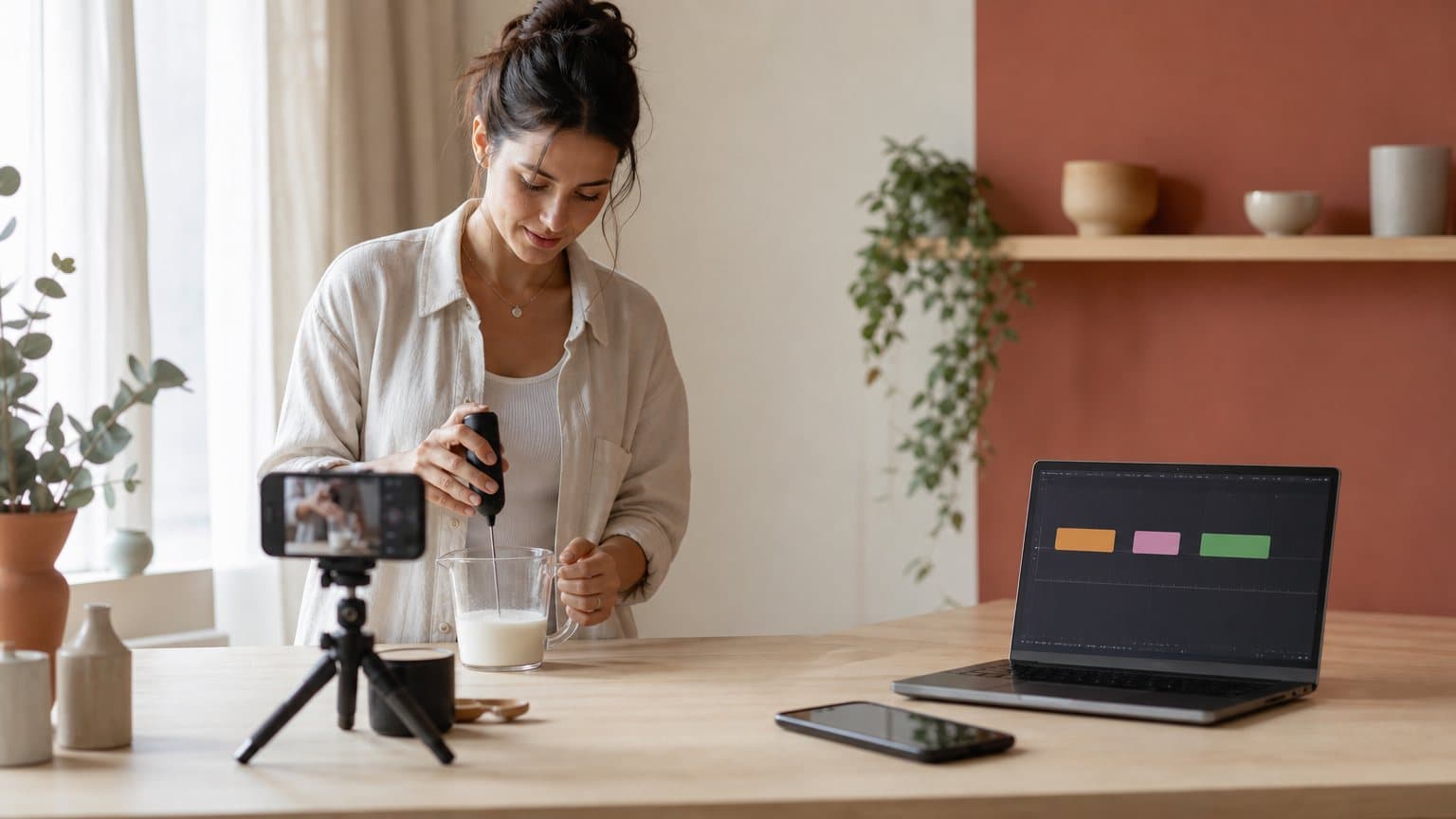
Thirty seconds, muted, and no fingers on the screen
A two-person team finishes a four-minute screen recording of its budgeting app on a Friday. One file, four destinations. They want it on the App Store page, the Google Play listing, a paid social ad and the homepage.
It fits almost none of them. Apple wants each app preview to run 15 to 30 seconds. Google Play may autoplay a preview for up to 30 seconds with the sound muted. Both stores tell you not to show fingers tapping the device, which is most of what a casual walkthrough shows.
A product demo video shows a product doing its core job, from the problem to the result, in the product's own footage. For an app or software, that footage is the screen. For a physical product, it is the object in someone's hands. The recording is rarely the hard part. The hard part is that every surface wants a different length, a different opening and a different relationship with sound.
So this guide treats a demo as one script and one capture session that produce three cuts: a store cut, an ad cut and a walkthrough. The platform rules below are quoted from Apple's, Google's, TikTok's and Amazon's own pages as of September 2026.
What a product demo video has to prove
A demo shows the mechanism, not the mood
Most video formats sell something next to the product. A brand video sells a feeling. A testimonial sells someone else's verdict, which is why the beats of a testimonial video are built around a person, not a screen. A demo sells the mechanism: the viewer watches the thing work and reaches the conclusion alone, which is why our ad creative strategy guide matches it to how-it-works angles.
Apple's definition of an app preview is the cleanest version of the idea. Previews "demonstrate the features, functionality, and user interface of your app using footage captured on device." The words that matter are captured on device. A demo is evidence, and staged evidence stops being evidence.
One job, from problem to result
Before you open a recorder, write the job in one sentence with a verb and a visible result. "See where every dollar went this month" is a job. "Powerful budgeting for modern families" is a tagline, and a tagline cannot be filmed.
One job per video keeps the cut honest. Apple makes the same point for apps with several previews: "If you have multiple previews, make sure that each video shows people something new about your app." Three previews should be three jobs, not one job filmed three ways.
A quick test for the sentence:
- It names something a viewer can see change, on the screen or in the hand.
- It can be shown in under 30 seconds without cutting to a slide.
- A new customer would say it, not your pitch deck.
Three kinds of demo, three kinds of footage
The job decides the footage, and the footage decides where the video can live.
| Demo type | Footage | Lives first on |
|---|---|---|
| App | On-device screen capture | App Store, Google Play |
| Software | Desktop or browser recording | Landing page, sales email |
| Physical product | Hands, object, result | Product page, ads, Amazon |
After this point, all three types follow the same three steps: script, capture, cut. Only the rules at the edges change.
Script it as problem, action, result
The three-beat structure
A demo script has three beats, and the timings come from the shortest surface you plan to publish on.
- The payoff first, in the opening 3 seconds. Open on the finished result or the problem at its worst: the sorted budget, the stain on the shirt. Not a logo, not a login screen.
- The action, in the middle. Two or three steps that get the job done, each one visible, each one a single take.
- The result and the fine print, at the end. The outcome again, plus any disclosure the platform requires.
TikTok's Creative Codes guide recommends the same shape for ads: "a three-part structure consisting of a hook, body, and close." Its reason for front-loading is that "90% of ad recall impact is captured within the first six seconds." Read that as TikTok's recall figure, which its own source list dates to a 2020 TikTok analysis, not as a sales result. The practical rule survives the caveat: the proof has to land before people scroll. Our guide to writing ad hooks that stop the scroll goes deeper on openers.
Write the on-screen text before the voiceover
Most demo plays start silent. Apple says that "by default, app previews play with the sound muted, so consider using copy to add additional context to your footage." Google Play's guidance for its preview video reads almost the same: "Consider using copy to give the user context if the video is muted (for example, when autoplayed)."
So write the captions as the primary script, then record a voiceover that follows them, never the reverse. Three constraints keep the text usable:
- One idea per caption, short enough to read twice while it is on screen.
- No prices, dates or seasonal hooks in a store cut. Apple asks you to avoid "any seasonal or timely references that will age your video" and says "Don't include specific prices, as pricing and currencies vary across regions."
- No call to action in a Google Play video. Google's guidelines name "Download now" and "Install now" as examples of what not to use.
Script what the product does, and nothing it does not
A demo invites small exaggerations: a transition that hints at a sync feature you have not shipped, a result that took ten minutes shown as instant. Apple addresses the first one directly: "Ensure that any transitions between scenes don't imply functionality that your app doesn't include." It also requires disclosure. If an app "uses a subscription model or requires login, you must disclose this," and Apple says the disclaimer can sit in the footage or in the end frame.
The same discipline applies to a physical product. If a blender needs 40 seconds on high, show those seconds sped up with a visible cue, not a hard cut to a smooth drink. A viewer who later waits the full 40 seconds remembers the video that lied.
Capturing an app or software demo
Record on the device, at native resolution
For an iPhone or iPad app, Apple's route is short: "Capture app footage from the device using QuickTime Player on macOS simply by connecting your device to a Mac." Apple also recommends "capturing the native UI resolution rather than zooming in on the view," which is why a store cut should skip the punch-in zooms common in software demos.
For Mac and web software, the recorder is already installed. Apple's support page says "You can use Screenshot or QuickTime player to make a video recording of the entire screen or just a selected portion of it," and the Screenshot app opens with Shift, Command and 5. Record a selected portion sized to the product window, so the walkthrough needs little cropping later. On other systems, any screen recorder that captures a single window does the same job.
Prepare a demo account before you press record
Nothing ruins a take faster than real data. Before capture:
- Seed a demo account with believable, fictional data: names, amounts and dates that tell the story of the job.
- Silence notifications so nothing slides over the footage.
- Tidy what you control in the status bar: a charged battery, no stray badges.
- Record each task as a separate take that starts from the same screen, so takes can be reordered in the edit.
Google Play asks for the same hygiene in its screenshot guidance: "Do not show service providers or notifications." A demo recording deserves the same care as a still.
Show the interaction without the hands
Screen demos tempt you to film a hand holding the phone. Both stores say no. Apple: "Don't film people interacting with a device, such as an over-the-shoulder angle or fingers tapping the screen." Google Play: "Do not include people interacting with the device (for example, fingers tapping on the device), unless the core gameplay or app usage is off-device."
Show taps with graphics instead. Apple allows it in plain terms: "you may add graphic elements, such as touch hotspots." Keep the rest of the store cut inside the product too, since Apple says "App previews must show only content within the app itself." Hands, desks and faces belong to the ad cut and the walkthrough, where no store rule applies.
Capturing a physical product demo
Pick the demo type before the shot list
Amazon's seller guide says product videos "tend to fall into six categories," and three of them are demos in all but name. A product overview is where "you share an overview of your product, demonstrate how it works, and highlight interesting features." A how-to video "shows the step-by-step process of how to use your product." A set-up video is where you "show people how to put your product together."
Choose one per video. A set-up video that detours into features loses the viewer who came to assemble the thing, and an overview that stops to explain assembly loses the one deciding whether to buy.
The shot list: problem, hands, mechanism, result
A physical demo needs fewer shots than most people plan, but it needs the right four:
- The problem state. Cold milk in a jug, a stained collar, a tangle of cables.
- Hands on the product. A medium shot at the angle a customer would hold it, so scale reads without a ruler.
- The mechanism, close. The whisk spinning, the foam rising, the clip closing. This is the shot a still photo cannot give you.
- The result. The same framing as the first shot, so the change is obvious at a glance.
Film each one as a separate take of 5 to 10 seconds with a clean start and end. You do not need a studio. Amazon's own FAQ notes that "you can shoot it yourself on your smart phone and edit it using software." Light matters more than the camera: a window to one side, a plain surface and the label turned toward the lens.
Where AI can stand in for the shoot
For the ad cut of a physical product, generation can replace some or all of the filming. Our guide to making product videos with AI walks through turning one product photo into an animated clip. Two cautions apply to demos in particular.
- A generated clip illustrates; it does not prove. Keep every on-screen claim to what the real product does.
- A generated person needs a real route to hold your product. An actor with empty hands cannot demonstrate anything, and the Novoads section below names the two routes that work.
How long a product demo video should be, surface by surface
App Store: 15 to 30 seconds, three per device size and language
Apple publishes the hardest limits of any surface. Its App Store Connect specifications list a minimum length of 15 seconds, a maximum length of 30 seconds and a maximum file size of 500MB. Its upload guide says "You can upload up to three app previews per supported device size and language for iOS, macOS, tvOS, and visionOS apps," and previews for macOS, tvOS and visionOS apps can only be landscape.
Three details change how you edit:
- Previews autoplay muted and come first. Apple says previews "autoplay with muted audio when users view your product page, so make sure the first few seconds of your video are visually compelling," and they "always precede screenshots."
- The default poster frame sits at 5 seconds. When someone has turned off autoplay, "a poster frame will display." Make the frame at five seconds worth stopping on, or set a different one.
- A missing localization borrows another language. Without a preview for a storefront's language, "the app preview from the next best available language is displayed on that product page instead." Localize the on-screen text before anything else.
Google Play: one YouTube video, and the first 30 seconds carry it
Google Play works differently. "You can add one preview video to your store listing by entering a YouTube URL," and that video "may autoplay inline with muted audio up to 30 seconds depending on the user device, setting, network connection, and surface area." Google's advice follows from it: "Keep your videos short and concise because only the first 30 seconds autoplays."
The requirements are about the YouTube upload itself. Google says to "Disable ads for your video to be shown on Google Play," to set the video's privacy to public or unlisted, and not to use an age-restricted video. Its recommendations read like demo rules: show "the core features and content as early as possible within the first 10 seconds of the video," and "Aim for at least 80% of the video to be representative of the user experience."
Ads, marketplaces and landing pages
No store caps the other surfaces, so the length call is yours. Here is where each one lands:
| Surface | Working length | Sound | Whose rule |
|---|---|---|---|
| App Store preview | 15 to 30 s | Muted autoplay | Apple spec |
| Google Play preview | First 30 s autoplays | Muted autoplay | Google guidance |
| Social ad cut | Proof inside 6 s | Plan for off | Our view, TikTok data |
| Amazon product video | 30 to 90 s | Check the slot | Amazon seller guide |
| Landing-page walkthrough | 60 to 120 s | On, with captions | Our view |
For the ad cut, each network publishes its own spec sheet, collected in our video ad specs by platform guide. Amazon's listing and ad slots follow two separate spec sheets, covered in how to make an Amazon product video. Amazon's general seller guidance, in a post dated Sep 5, 2024, is that "a product video should be 30 to 90 seconds long, with some more detailed videos running up to two minutes."
A walkthrough that needs more than two minutes is onboarding, not a demo. Split it into tasks and link them.
One recording, three cuts: a worked example
The session: five takes, 200 seconds of footage
Back to the budgeting app. Instead of one four-minute walkthrough, the team records five separate on-device takes, each starting from the home screen of a seeded demo account:
- Connect a bank account with fictional data: 40 seconds of raw footage.
- Auto-sort a month of transactions into categories: 35 seconds.
- Split one grocery bill between two people: 50 seconds.
- Set a monthly limit and trigger a warning: 45 seconds.
- Open the monthly summary chart: 30 seconds.
That is 200 seconds of raw footage, a little over three minutes, and every cut below comes out of it.
The store cut: 28 seconds, reused on Google Play
The first App Store preview covers one job, see where your money went:
- Seconds 0 to 3: the finished summary chart, captioned "See where every dollar went" (take 5).
- Seconds 3 to 12: transactions sorting into categories, with a touch hotspot on the single tap (take 2).
- Seconds 12 to 22: the limit warning appearing (take 4).
- Seconds 22 to 26: the chart again, now updated.
- Seconds 26 to 28: an end frame reading "Subscription required", the disclosure Apple asks for.
Twenty-eight seconds sits inside Apple's 15-to-30 window with two seconds of margin. The frame at 5 seconds, the default poster frame, lands on transactions sorting, which reads as the product at work. The bill-splitting take becomes the second preview, a different job, as Apple asks. The same 28-second file, uploaded to YouTube with ads turned off, becomes the Google Play preview, because Google Play autoplays up to 30 seconds and the whole cut fits inside that.
The ad cut and the walkthrough
The ad cut starts from the same takes but ignores the store rules on purpose, because no store is reviewing it. It opens on a person saying "I had no idea where 600 dollars a month was going," cuts to the chart by the third second, and carries burned-in captions for plays with the sound off. It runs 20 seconds in 9:16. Make three versions with three different opening lines, then test the variations properly instead of guessing.
The walkthrough is the full story for people who already clicked: all five takes in order, trimmed to 95 seconds, with voiceover, captions and cursor highlights, hosted on the landing page and linked from sales emails.
The arithmetic of one shoot: 200 seconds of raw footage produced two App Store previews (one reused on Google Play), three 20-second ad variants and a 95-second walkthrough. That is six videos from a single capture session, and none of them needed a reshoot.
The mistakes that sink a product demo video
Opening on the logo
The splash screen is the most common first frame in a demo and the least useful one. Google Play asks developers to "Limit title screens, logos, cutscenes, or other pre-rendered or promotional content." Put the logo in the end frame. A viewer who reached the end already cares who made the product.
Letting the voiceover carry the story
If the demo only makes sense with sound, it fails on every autoplay surface in this guide. Watch the cut on mute before you export, and when a step is unclear, fix the caption rather than the narration. Google also recommends captions for a second reason: "Use captions for preview videos to help users who are deaf or hard of hearing, as well as those in loud environments."
Filming the phone instead of the product
A hand holding a phone makes a demo feel real in an ad and breaks the rules in a store cut. Keep two sets of footage from the start: clean on-device capture for the stores, and over-the-shoulder or selfie footage for ads. Retrofitting one into the other rarely looks right.
Sending a monetized or copyrighted video to Google Play
Google explains why ads must be off: "When users browse Google Play, we want them to see a video about your app, not someone else's ad." If the video uses copyrighted content, such as a commercial music track, Google warns that "turning off monetization for your video may not be enough to prevent ads," and says to use a different video. Apple's version of the rule is shorter: "Show only material you have the legal right to display." Use licensed or original audio in the store cut from day one.
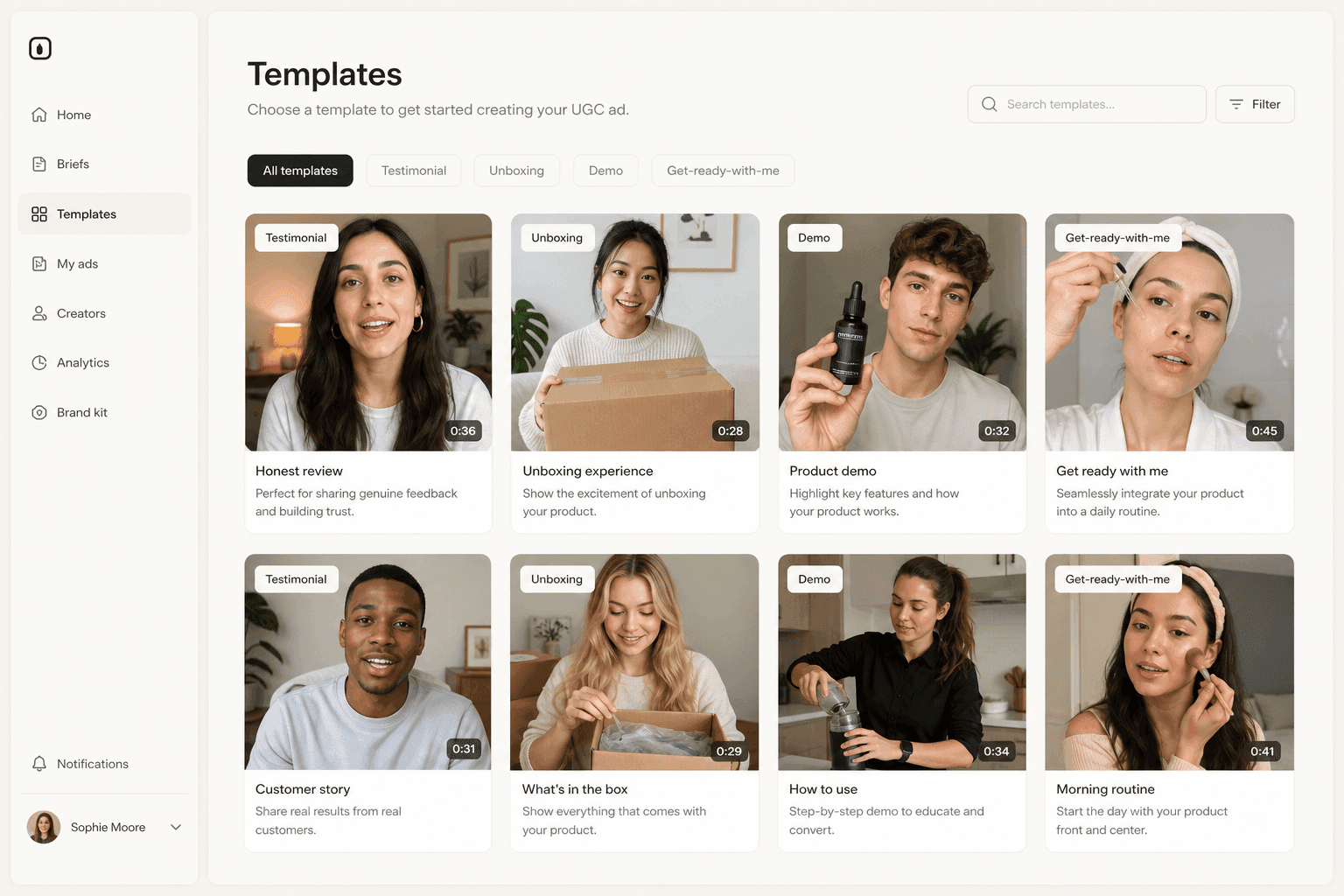
How Novoads solves the hands-on demo shoot
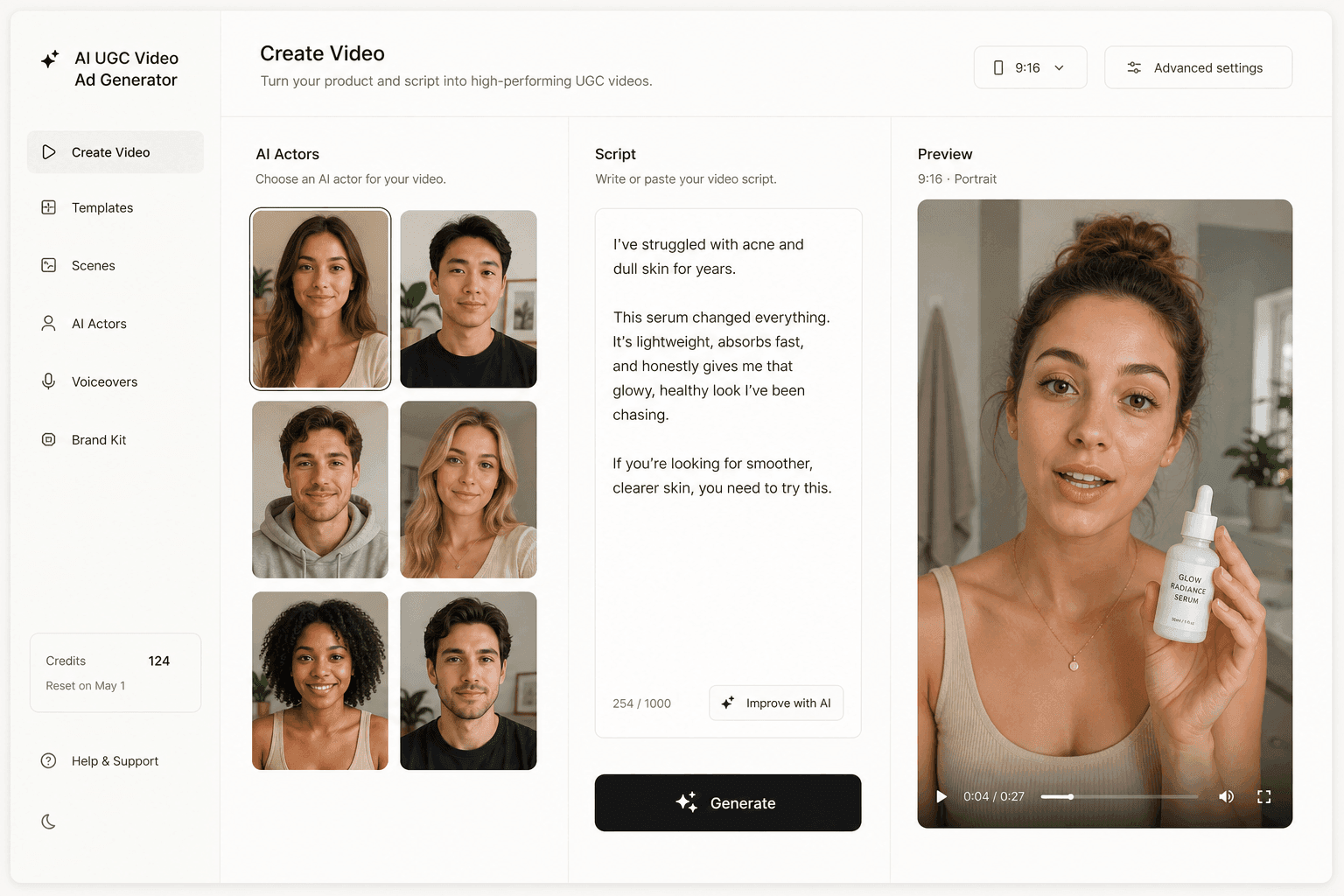
Novoads is an AI UGC video ad generator: you upload a product image or write a script, choose or create an AI actor, and download a video ad in 9:16, 1:1 or 16:9. In a demo workflow, it covers the physical-product ad cut, the part that usually needs a person, the product in hand and a camera.
Two routes to the product in hand
A stock actor from the library has empty hands, so a script about your product would show nobody holding it. Two routes do show it:
- A Discover product template. In Discover's Product category, you upload a photo of your product. The template swaps it into the hand of the template's creator, then animates a 15-second Seedance 2.0 clip.
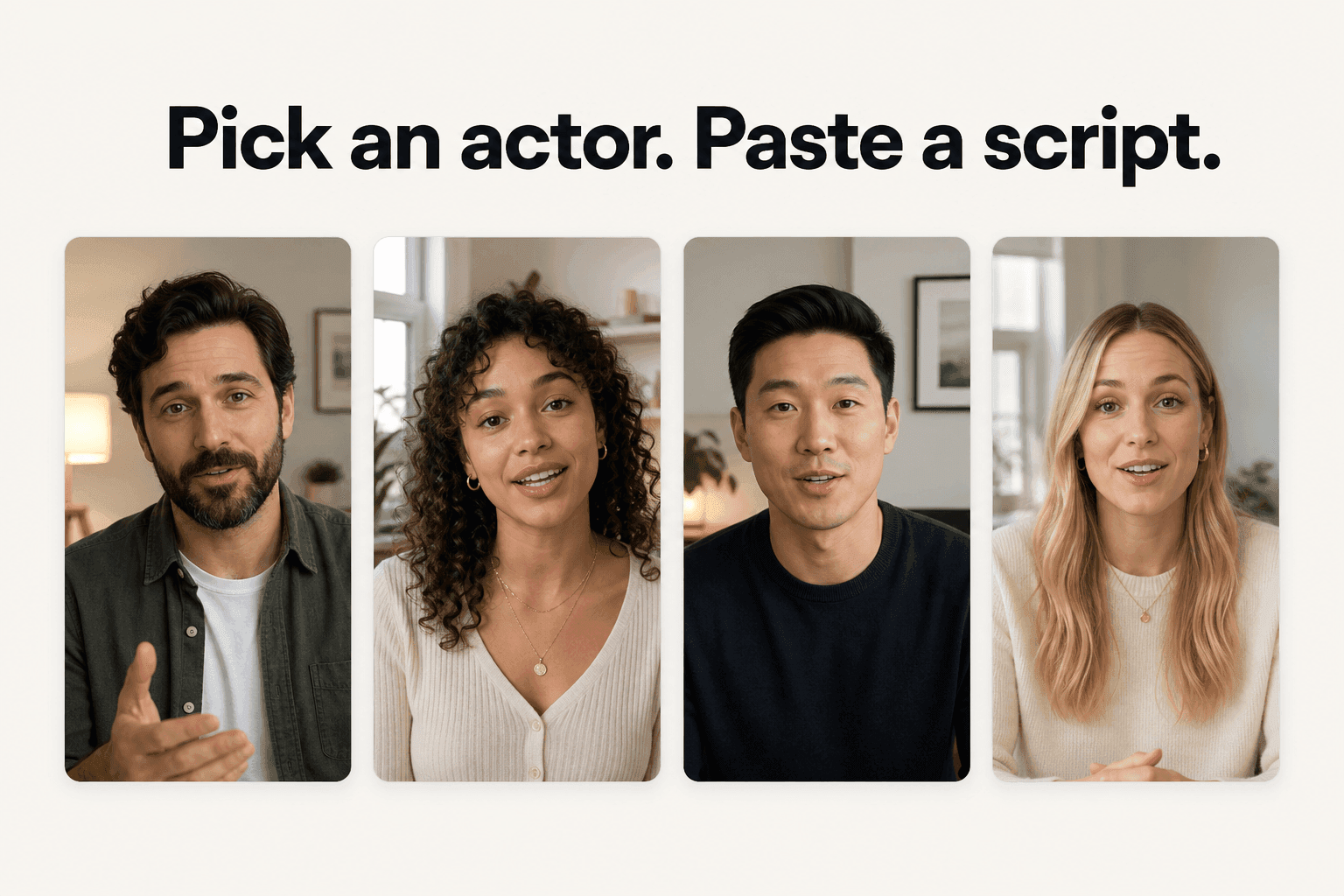
- A custom actor from a photo. In Create Actor, choose Upload, which Novoads describes as "Transform a picture into a talking actor," and use a photo of someone holding your product. That actor then delivers your demo script, with voices in 31 languages and captions for muted plays.
For an app, nothing needs holding: a library actor can deliver the spoken opener of the ad cut, and you cut it together with your screen footage in your editor.
What it does not replace
An App Store or Google Play preview still has to come from your app's own screen. Apple asks for footage captured on the device, and Google recommends that at least 80% of the video represent the real experience. Use generation where the stores are not reviewing the footage.
Clips run from about a dollar for a five-second Seedance 2.0 Mini clip to about $8 for an eight-second Seedance 2.5 clip, and about $26 for a full 30-second Seedance 2.5 take. Novoads starts at $49/month (Starter, 50 credits per month), and all plans are published on /pricing. The screen takes still come from the device; the hands-on ad cut can come from Novoads.
The recording is the proof, the cut is the room
A demo video is not one video. It is one piece of proof, trimmed to the length, the silence and the rules of the place it plays. Teams that shoot a single long walkthrough end up re-recording for every surface; teams that shoot separate takes of separate jobs end up editing.
Record the proof once, in pieces. Every cut after that is editing, not production.
Frequently Asked Questions
How long should a product demo video be?
It depends on where it plays. An App Store preview must run 15 to 30 seconds. On Google Play, a preview may autoplay muted for up to 30 seconds, and Google notes that only the first 30 seconds autoplays. Amazon's seller guide says a product video should generally be 30 to 90 seconds, with some detailed videos running up to two minutes. For a paid social ad, land the proof in the first six seconds: TikTok's Creative Codes guide says 90% of ad recall impact is captured there, a recall figure its source list dates to 2020.
What are Apple's rules for an App Store app preview?
Apple lets you upload up to three app previews per supported device size and language. Each must be 15 to 30 seconds long with a maximum file size of 500MB, and the footage should be captured on the device. Previews autoplay with muted audio, must show only content within the app, should not show fingers tapping the screen and should not include specific prices. Previews for macOS, tvOS and visionOS apps must be landscape.
How do I add a demo video to Google Play?
Google Play takes one preview video, added as a YouTube URL in the preview video field of Play Console. The video must be public or unlisted, must not be age restricted, and needs ads turned off. Google recommends showing core features within the first 10 seconds, keeping at least 80% of the video representative of the real app experience, and adding captions, because the video may autoplay muted for up to 30 seconds.
How do you record a software demo video?
Seed a demo account with fictional data first, then record each task as its own take. On a Mac, Apple's Screenshot app (Shift, Command and 5) or QuickTime Player can record the entire screen or a selected portion. For an iPhone or iPad app preview, Apple suggests connecting the device to a Mac and capturing with QuickTime Player. Separate takes let you reorder and trim them into a store cut, an ad cut and a walkthrough.
Can I make a product demo video with AI?
For the ad cut of a physical product, yes. In Novoads, a Discover product template swaps your uploaded product photo into a template creator's hand and animates a 15-second Seedance 2.0 clip, or you can create a custom actor from a photo of someone holding your product and have that actor deliver your script. For an App Store or Google Play preview, keep the real screen recording: Apple asks for footage captured on the device.
What should a product demo video script include?
Three beats: the result or the problem in the first seconds, the two or three actions that get the job done, and the result again with any required disclosure. Write the on-screen text first, because store previews and many ads start muted. Leave out anything the product does not do: Apple asks that transitions between scenes not imply functionality the app does not include.
Key Takeaways
- A product demo video proves that one job gets done, from the problem to the result, in the product's own footage: the screen for an app or software, the object in someone's hands for a physical product.
- Apple lets you upload up to three app previews per supported device size and language, each 15 to 30 seconds long and captured on the device. Previews autoplay muted, and Apple says not to film fingers tapping the screen.
- Google Play takes one preview video as a YouTube link and may autoplay it muted for up to 30 seconds. Google asks for ads turned off on that video and recommends showing core features within the first 10 seconds.
- Record once, in separate takes, then cut three versions: a store cut that follows the store's rules, an ad cut whose first six seconds work with the sound off, and a longer walkthrough. Amazon's seller guide puts a product video at 30 to 90 seconds in general.
- AI fits the physical-product ad cut, not the store preview. In Novoads, the product in hand comes from a Discover product template or a custom actor made from a photo of someone holding the product. Novoads starts at $49/month (Starter, 50 credits per month).